Step-by-Step Upgrade Instructions
Log in to the Business Central Admin Center
From the left panel, choose the Environment section and click on the one you want to update
Schedule the Upgrade to the new version
Go to the Environment details page.
Under the Update Settings section, modify the Next Update to the required version.
If you are updating a Sandbox, you can enable the option "Allow the update to run outside the update window."
Pick a date and time that aligns with your organization’s maintenance window.
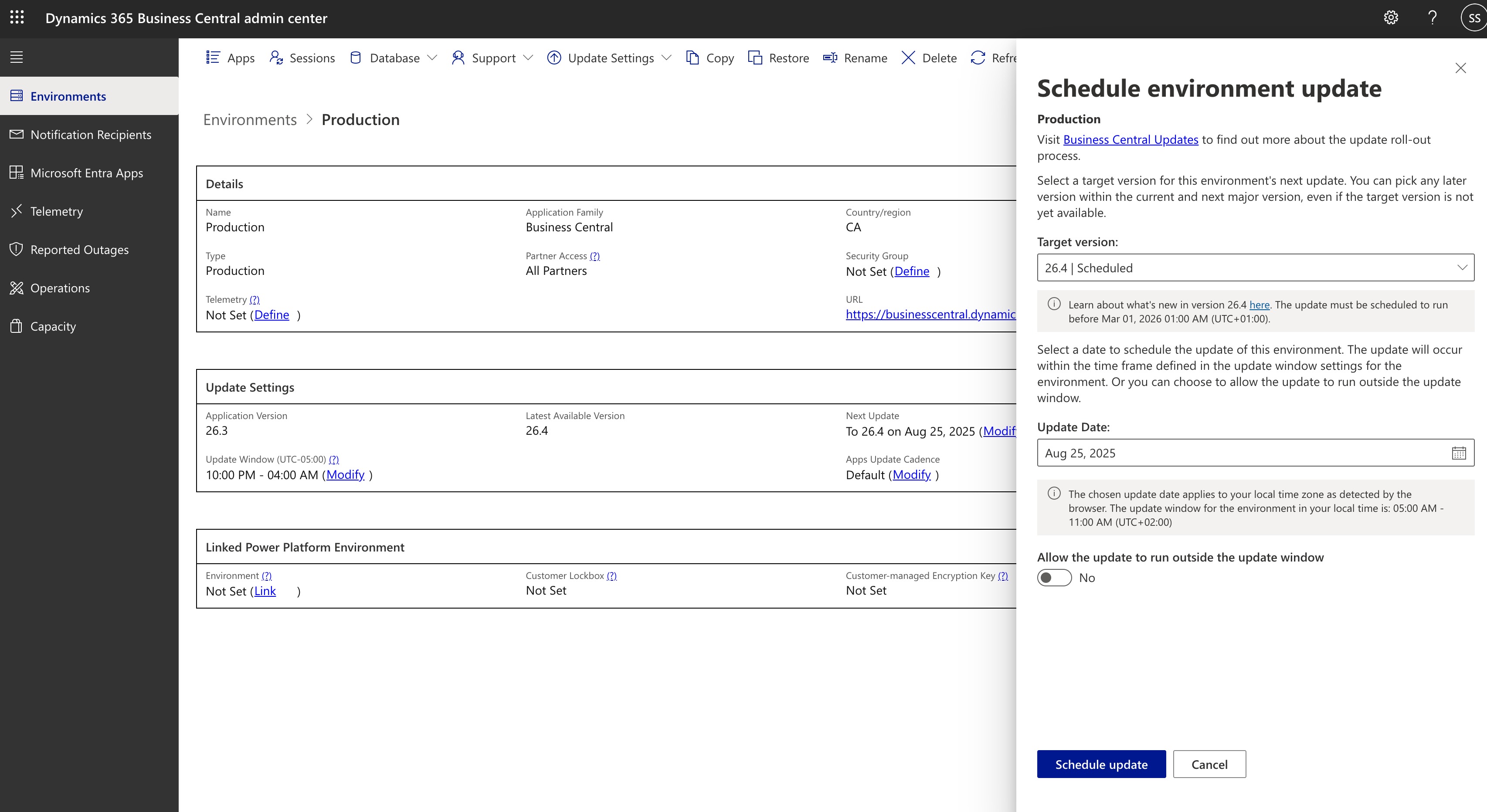
Confirm the Upgrade
Save the schedule and verify that the update appears under Scheduled Updates.
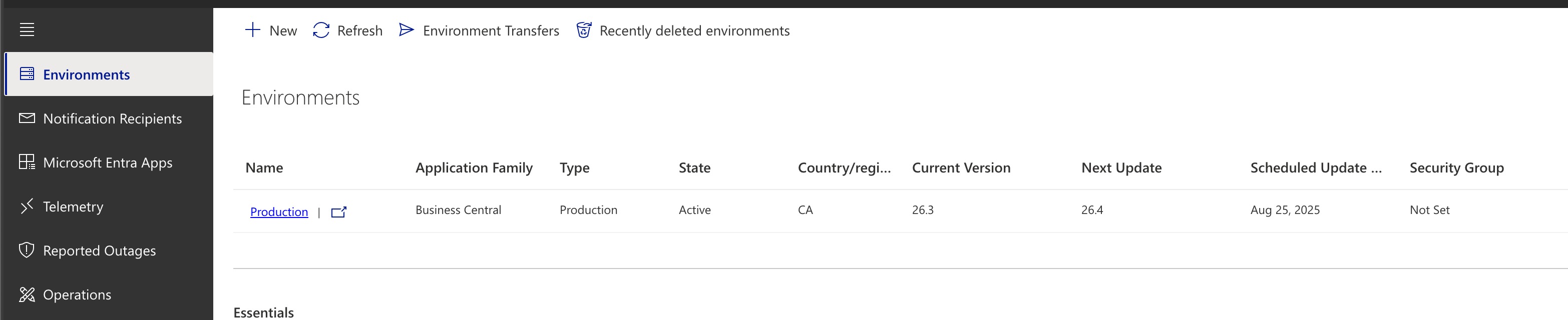
Post-Upgrade Verification
After the upgrade completes, go back into the Business Central Admin Center and check the Current Version value
Verify core business processes (finance, payroll, HR, etc.) are working as expected.
Was this article helpful?
That’s Great!
Thank you for your feedback
Sorry! We couldn't be helpful
Thank you for your feedback
Feedback sent
We appreciate your effort and will try to fix the article