Version 29.1 for Sparkrock 2026 Release Wave 2 brings the Microsoft Dynamics 365 Business Central 2026 release wave 2 platform update to Sparkrock. It includes new enhancements to the everyday user experience, finance, financial reporting, and document layouts.
Take action now: Schedule version 29.1
Version 29 follows Microsoft’s Flexible Update Management process. Here’s what we recommend:
- Set your update to version 29.1 now. Ask your Microsoft administrator to set your Business Central environment to delay the upgrade to version 29.1, so you skip version 29.0. Version 29.1 is expected in November, and this is the approved and fully supported upgrade path for all customers.
- Update by February 2027. Your administrator can schedule the update any time in a five-month window that ends in February 2027. You must upgrade by February, or Microsoft's update process will attempt to automatically update, and you may experience downtime.
- Update sooner rather than later. Sparkrock’s weekly releases, with fixes and new features, will only be released for version 29, not version 28.
To learn more about how Business Central updates work, watch our video on the platform update process:
https://learn.sparkrock.com/en-us/files/general-module-platform-updates.
User experience
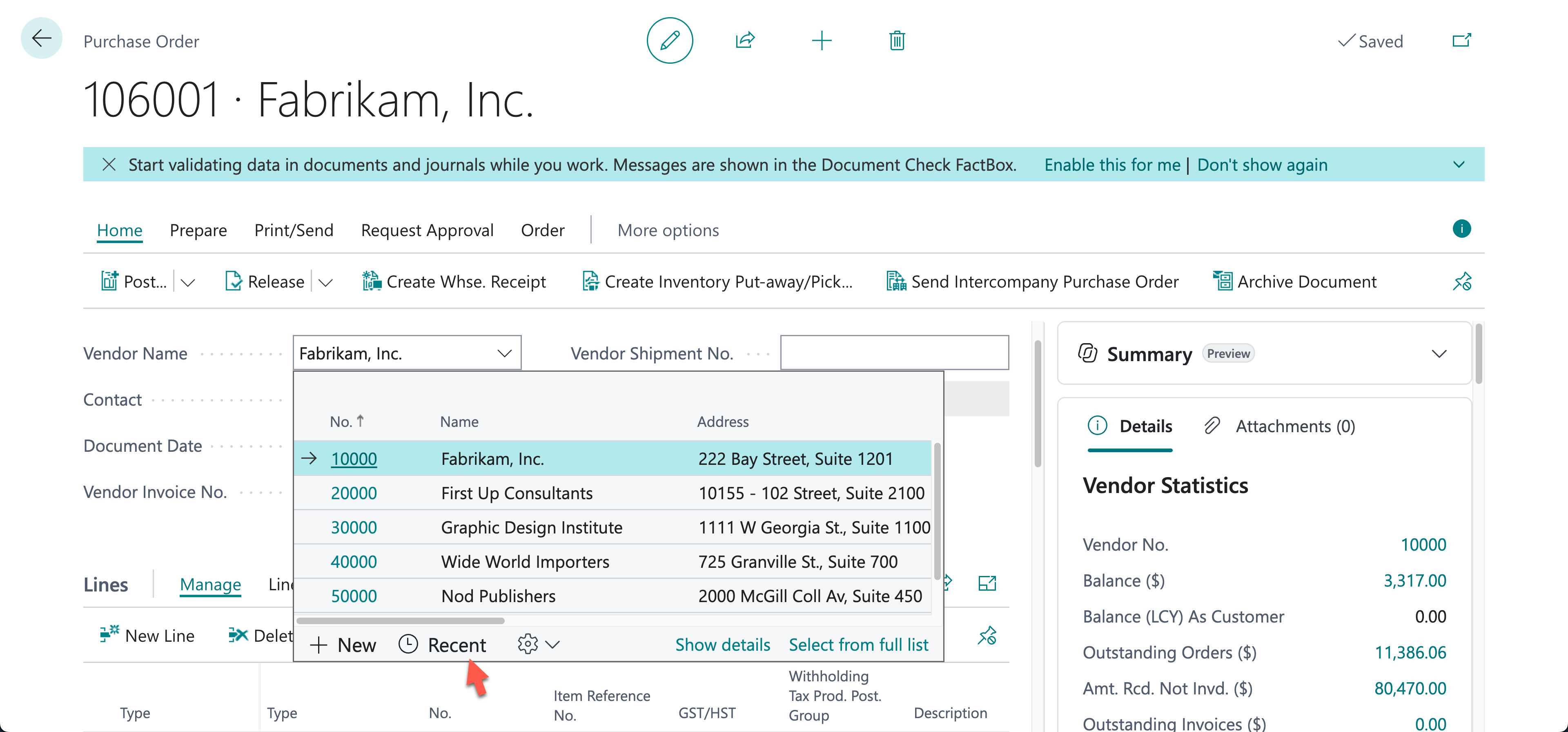
- Recently used records in lookups. When you open a lookup, select the new Recent option to see the vendors, G/L accounts, or other records you’ve used most recently. Select Search to get back to the full list. It’s personalized for each user.
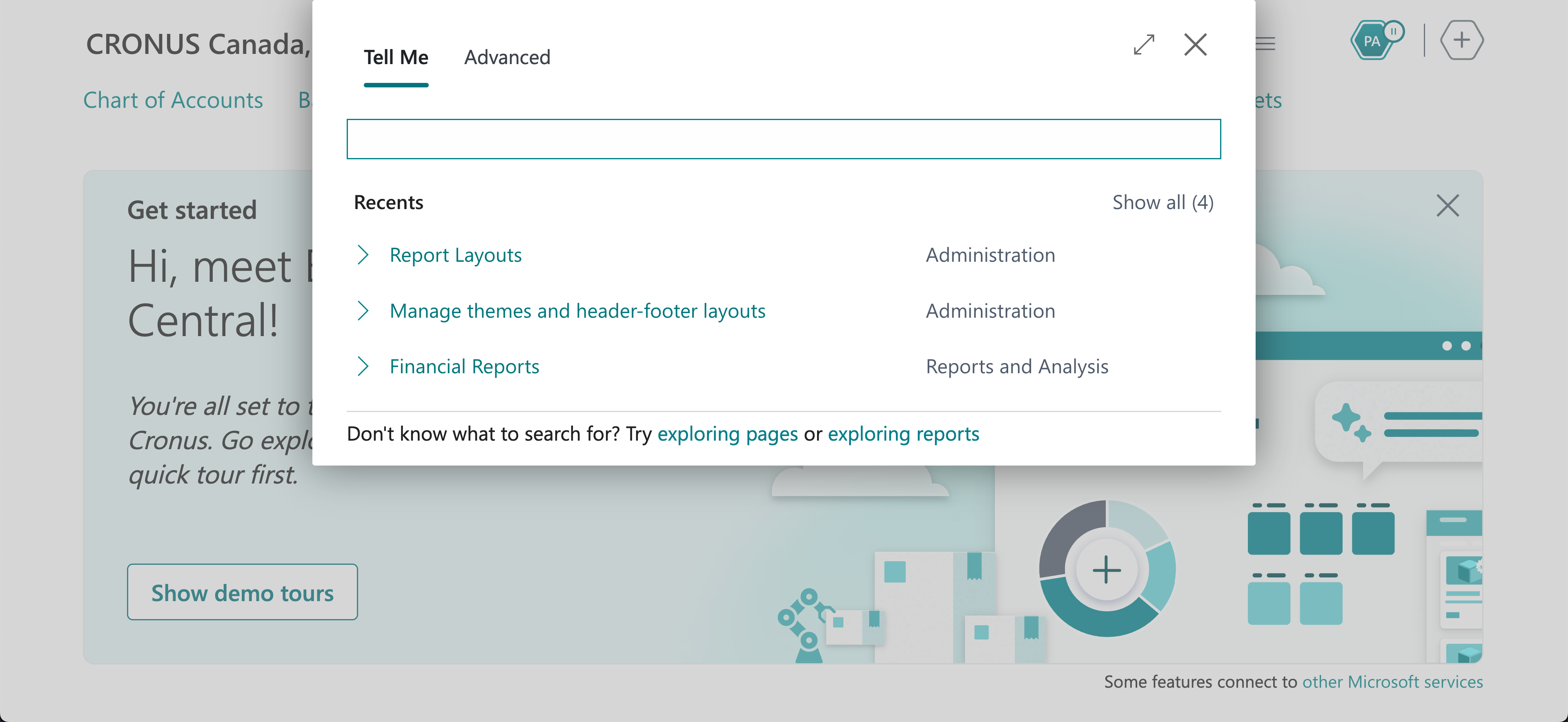
- Recent searches in Tell Me. Tell Me now shows your recent searches in a Recent section at the bottom, so you can get back to a page or report in one click. Open Tell Me with the magnifying glass, or with Alt+Q on Windows or Ctrl+Option+Q on a Mac.
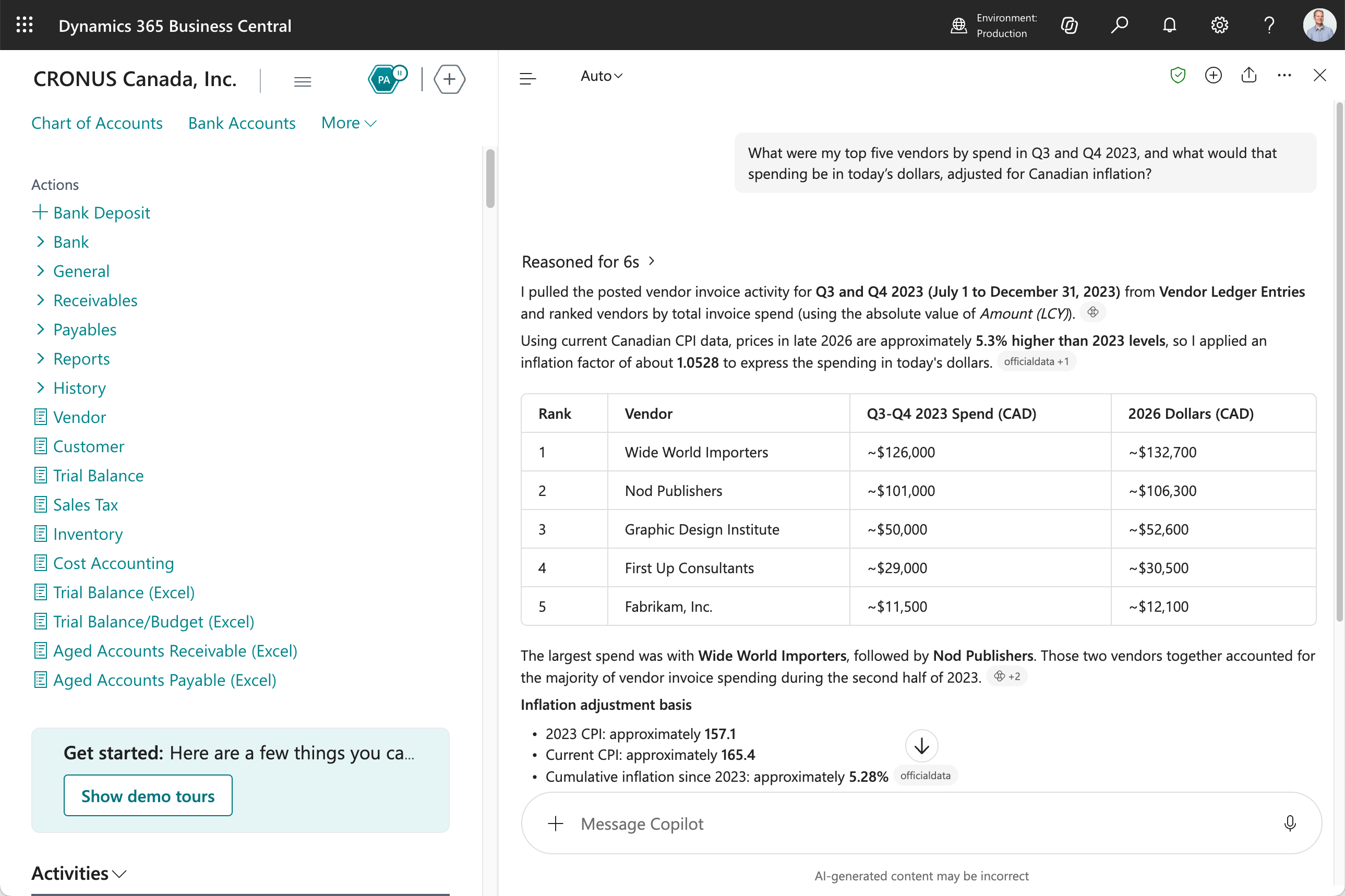
- Microsoft Copilot chat. Selecting the Copilot button now opens Microsoft Copilot chat, the same experience you may already use in Outlook, Teams, and other Microsoft 365 apps.
- Your data, plus the web. Copilot can now combine your Sparkrock data with information from the web in a single answer. For example, ask “What were my top five vendors by spend in 2023, and what would that spending be in today’s dollars, adjusted for Canadian inflation?”
- Check its work. Answers include citations, and a new Sources button shows everything Copilot looked at to build its answer.
- More ways to work. Attach files and images to your questions, start a temporary chat that isn’t saved, and widen the chat pane to nearly full screen.
- Created By and Modified By in analysis mode. The system fields Created By, Created At, Modified By, and Modified At are available in the Columns pane in analysis mode. Add them to a list to group or filter by who entered or changed records.
- For administrators: Permissions Overview in more places. Open the Permissions Overview page directly from the Permission Sets list, the permission set card, and the Table Information page. From the Permission Sets list, select a permission set and choose Where Used. You’ll see the security groups and users assigned to it, and the tables it touches.
Finance
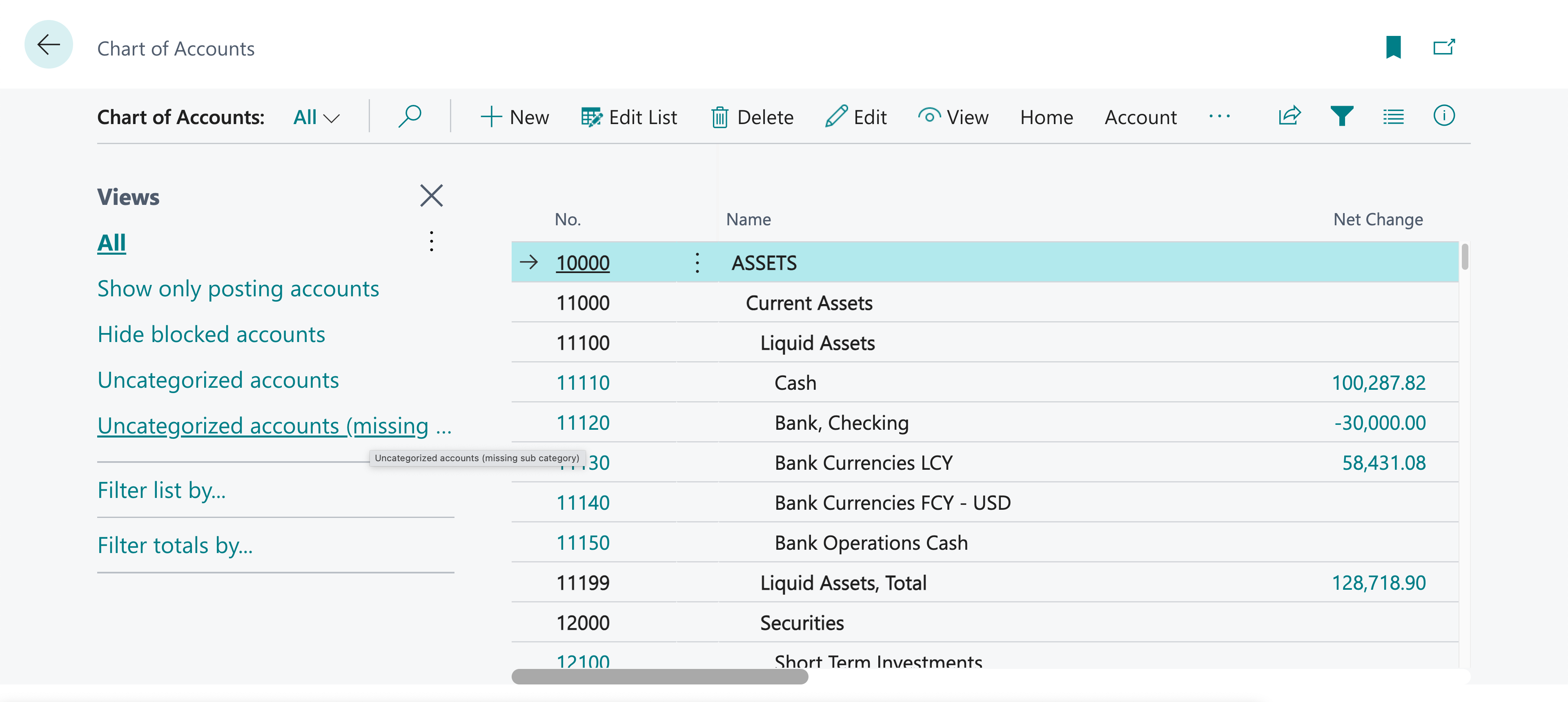
- Find uncategorized accounts. Two new saved views on the Chart of Accounts, Uncategorized Accounts and Uncategorized Accounts Missing Subcategory, show accounts that are missing a category or a subcategory. Open the filter pane to find them. It’s a quick check to run after setting up new accounts and before period-end reporting.
Financial reporting
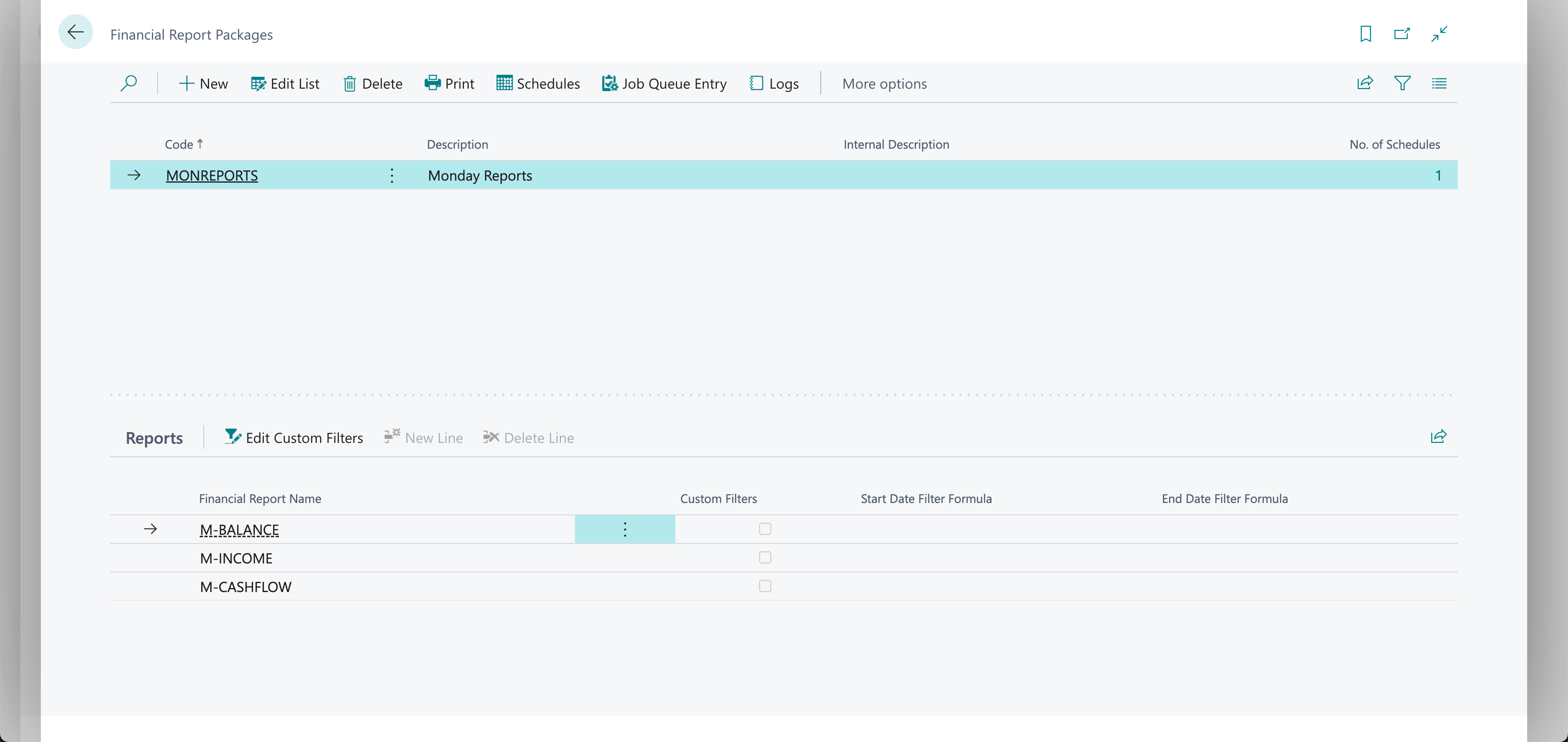
- Report packages. Combine several financial reports into a single PDF. Use the Packages action to create a package, add your reports, and set filters and dates for each one. Then select Print to run it.
- Schedule report packages. Select Schedules to have a package run automatically and arrive in the report inbox or by email.
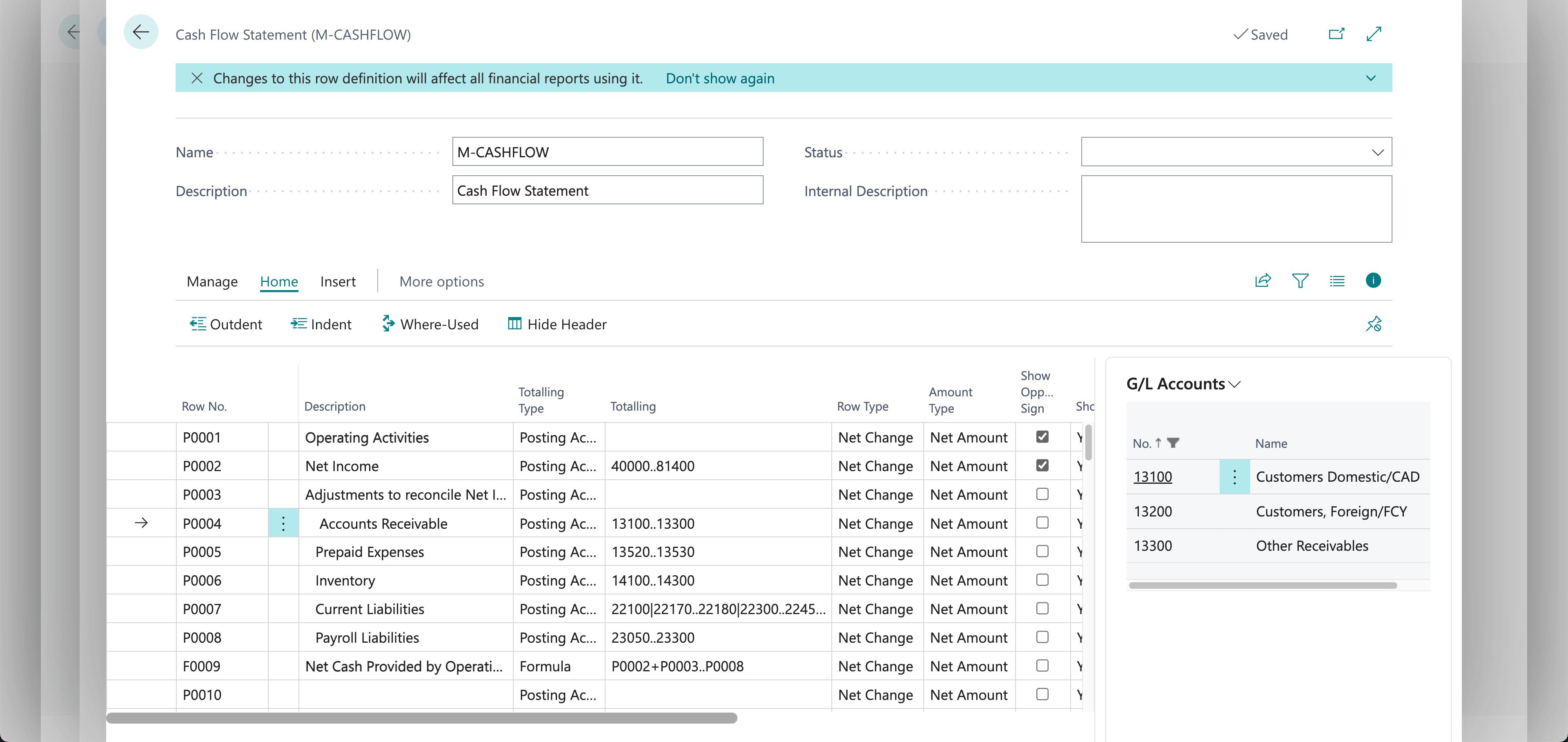
- See the accounts behind a total. When you work on a row or column definition, a new G/L Accounts FactBox shows exactly which G/L accounts a line’s totaling filter includes. Select any account to see more details.
- Report changes are always logged. Changes to row, column, and report definitions are recorded in the change log automatically. If a report starts showing numbers you don’t expect, you can see who changed the definition and when.
Document reports and layouts
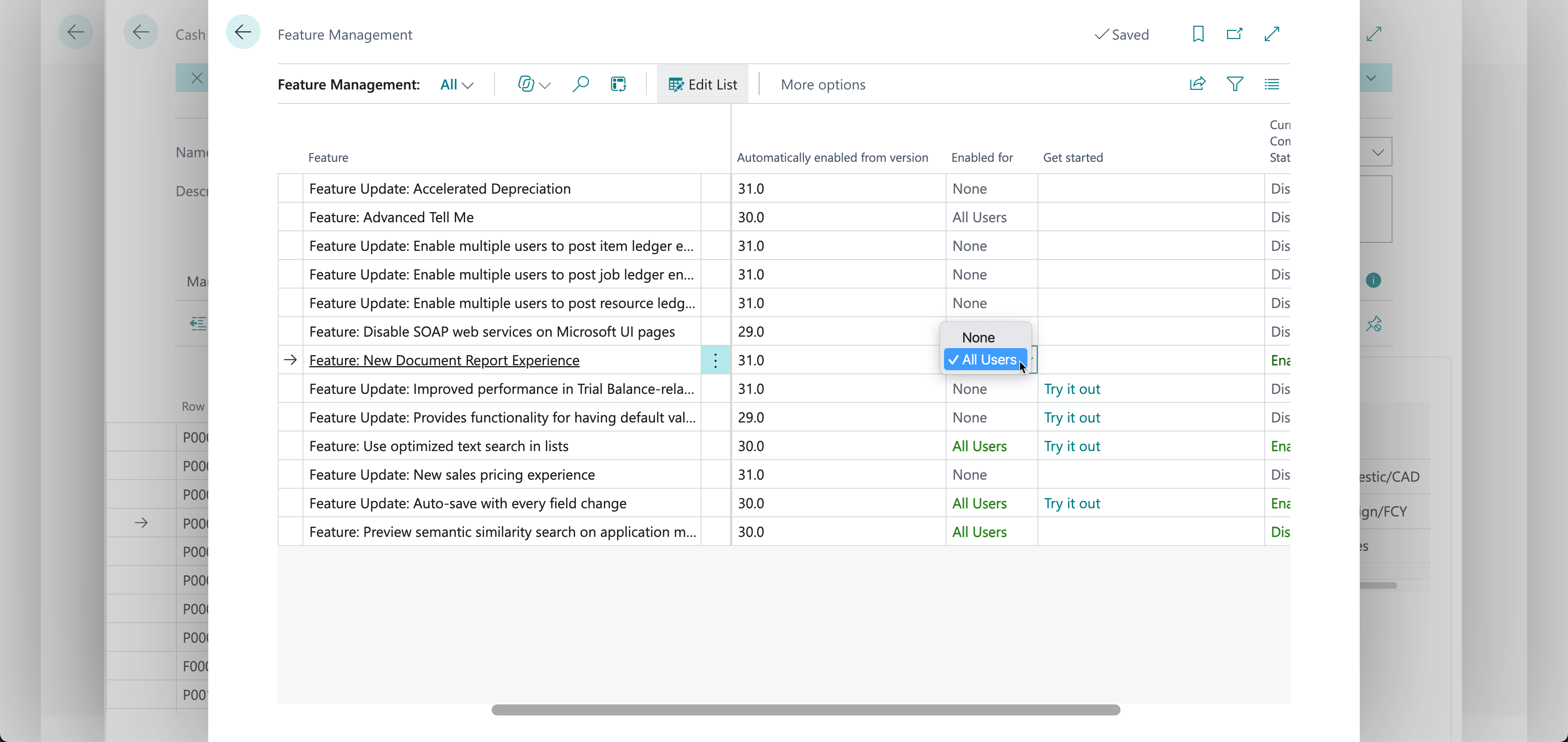
- Composite layouts. Define your branding once as a theme, and your header and footer content once as a header/footer layout. Then apply them across your Word document reports without editing the reports themselves. To use composite layouts, turn on New Document Report Experience in Feature Management.
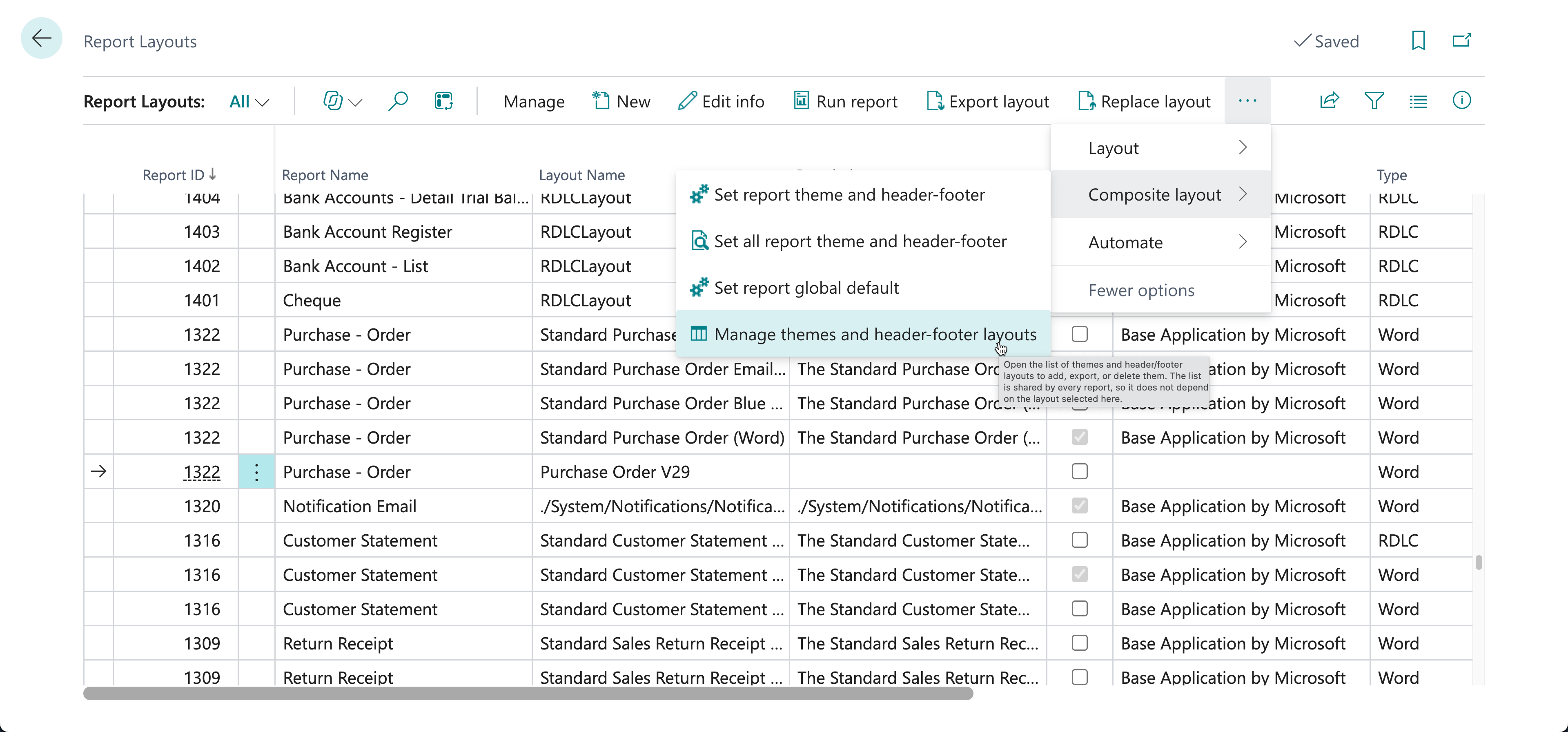
- Mix and match themes. On the Report Layouts page, use the Composite Layout menu to choose a theme and header/footer for a layout. Version 29 includes a long list of ready-made themes and header/footer layouts to start from.
- Set defaults once. Set your defaults globally, per company, per report, or per layout, and each level overrides the one above it. For example, if you have more than one company, each one can have its own branding on the same purchase order layout.
- Create your own. Select Manage Themes and Header/Footer Layouts to add your own:
- A theme must be saved as a Word template (.dotx).
- A header/footer can be a regular Word document.
- Both need to be set as approved before you can use them.
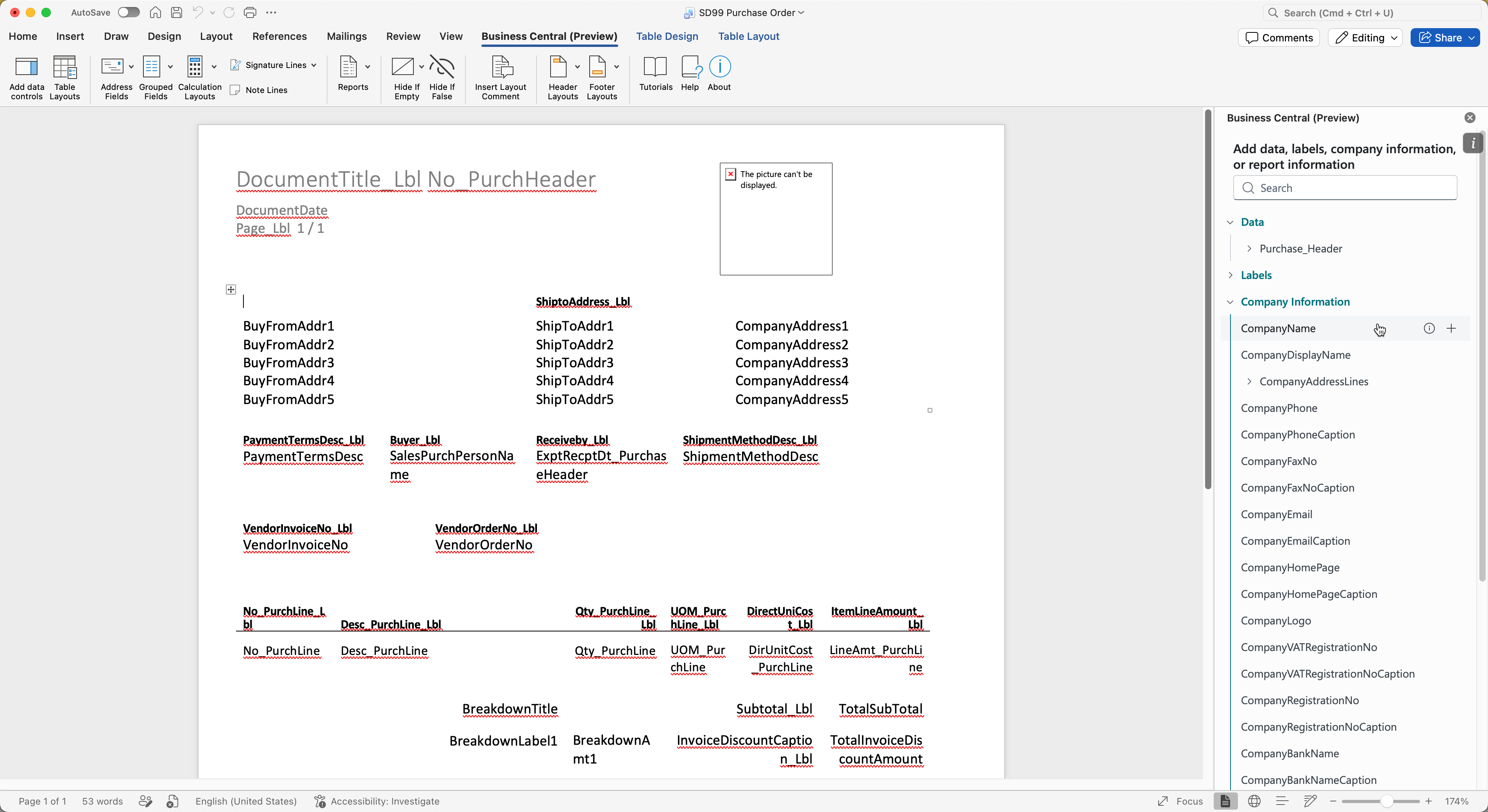
- Word add-in updates. To find the add-in, go to the Add-ins menu in Word and look for the Dynamics 365 Business Central Word add-in (preview). Version 29 adds:
- Company information, like your organization’s name and address, in every Word layout
- An improved data picker
- Ready-made design controls for common parts of a document, like addresses
- A Hide if control that shows or hides content based on a yes/no field, for example to hide values when they’re zero
- The ability to edit a table you’ve already inserted, without rebuilding it
- Sample documents, including a sample invoice, that you can start from and save as a theme
- Layout lifecycle. Admins can set a status like Draft or Approved on any report layout, including Microsoft and Sparkrock layouts. Users only see approved layouts when they run a report, while admins can still run any layout from the Report Layouts page. Admins can also override a layout’s description, even if it comes from an app.
Was this article helpful?
That’s Great!
Thank you for your feedback
Sorry! We couldn't be helpful
Thank you for your feedback
Feedback sent
We appreciate your effort and will try to fix the article