mySparkrock has a fresh new look. It’s cleaner, more modern, and quicker to move around in, and it will feel familiar from the start.
The workflow itself hasn’t changed. You’ll find similar steps and menu structure, the same Microsoft login, and the same permissions and approval rules you have today.
Below is a quick overview of what’s new for everyone, followed by a section for each role.
What’s new for everyone
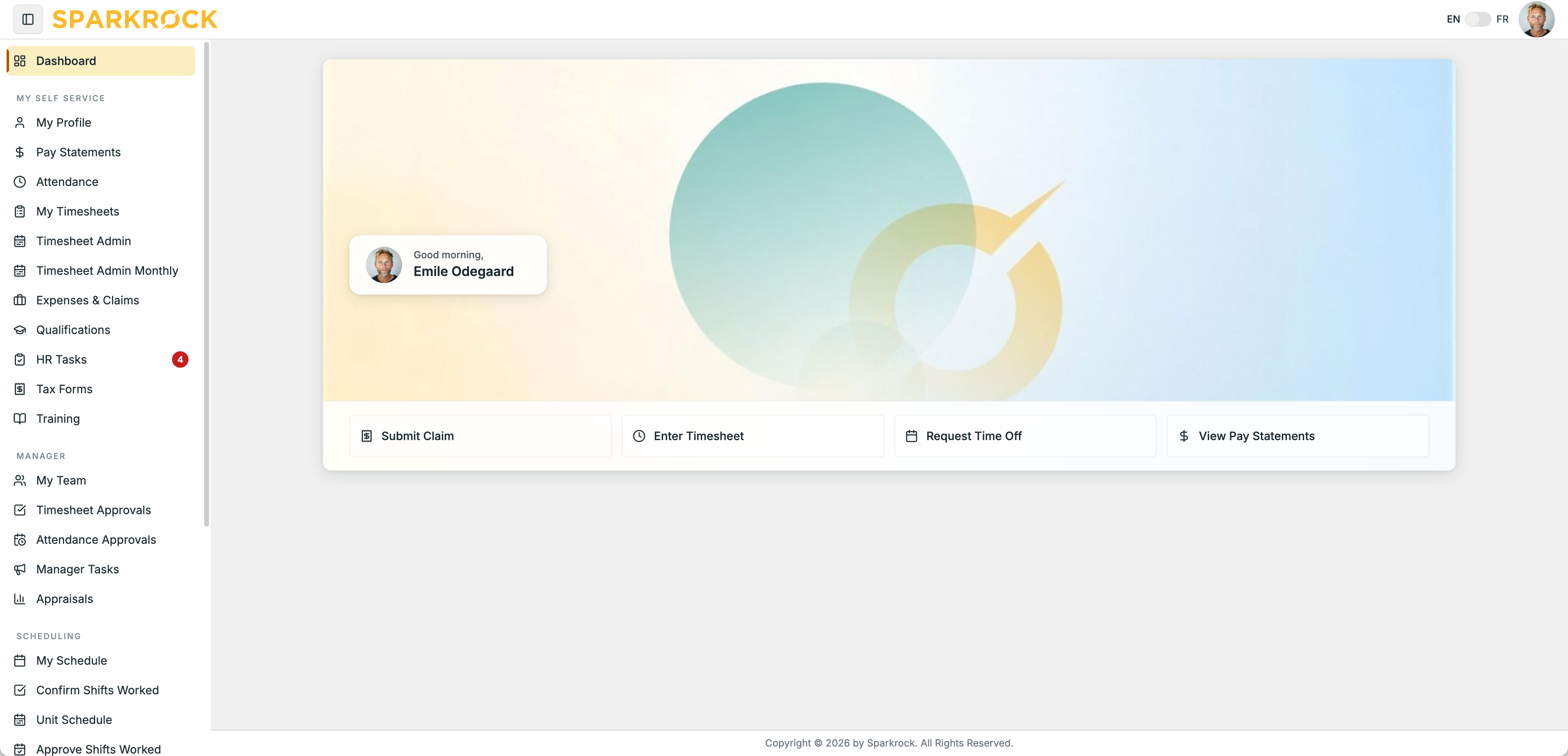
- A dashboard built around what you do most. Common jobs like submitting an expense claim, entering a timesheet, or requesting time off are one click away.
- A cleaner, simpler layout. Less empty space and less scrolling, so more of what you need is on screen at once.
- The same menu, in the same places. Pages haven’t moved. A few menu names are shorter:
- Finance & Purchasing is now Finance
- Manager Self Service is now Manager
- Attendance & Requests is now Attendance
- Training & Registration is now Training
For Finance employees
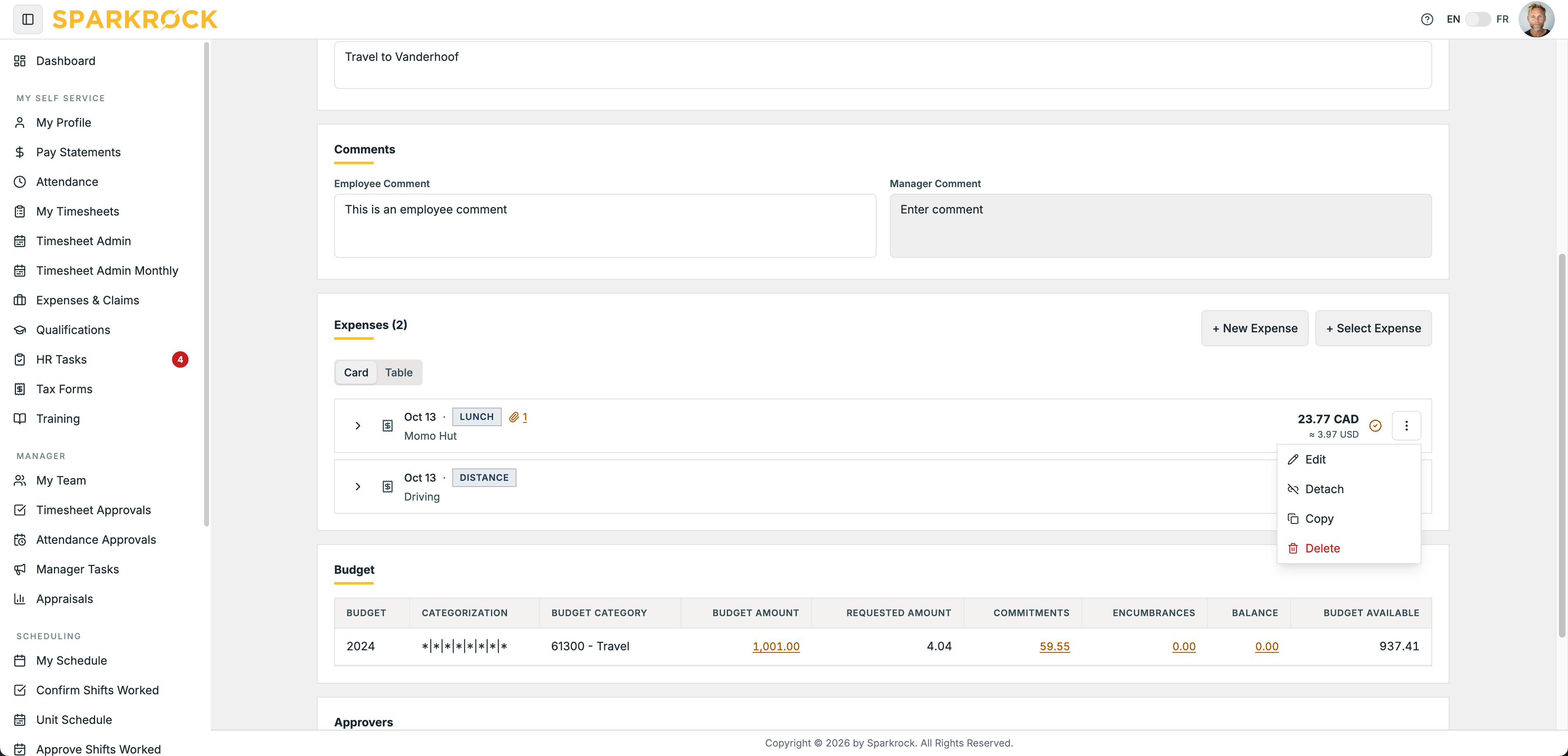
- Card and table views. Read expense lines in a clean card view, or switch to a table view to see every line at once.
- Line actions in one place. Edit, detach, copy, and delete now live in a side menu, and work the same in both views.
- Tidier expense forms. Related fields are grouped into General, Cost, and Accounting areas. Select Show breakdown for tax detail, or Review for dimension details.
- Only the fields you need. Custom fields appear only for the expense types that use them.
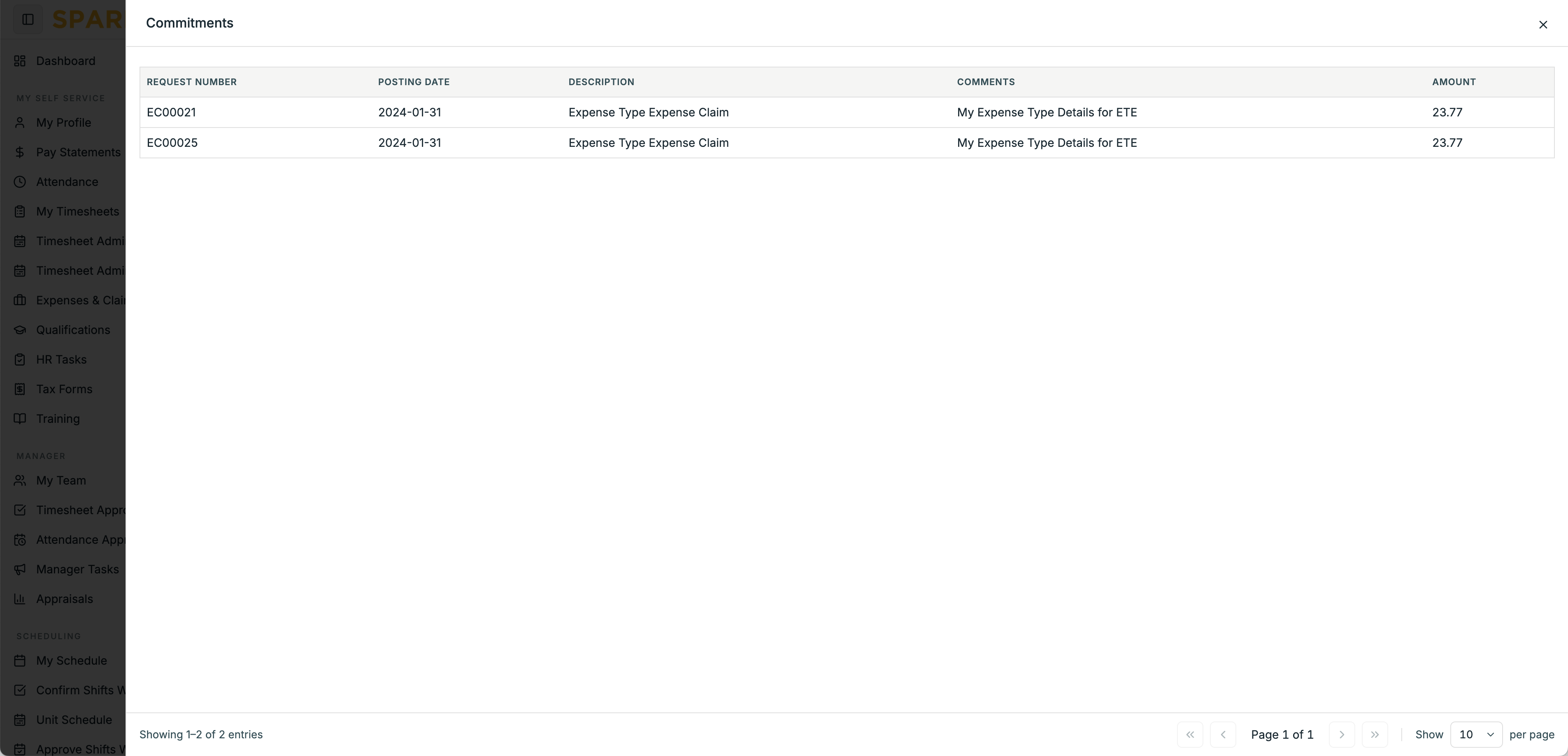
- Budget checking up front. If your organization uses budget checking, open a panel to see the detail, with a clear flag when something is over budget.
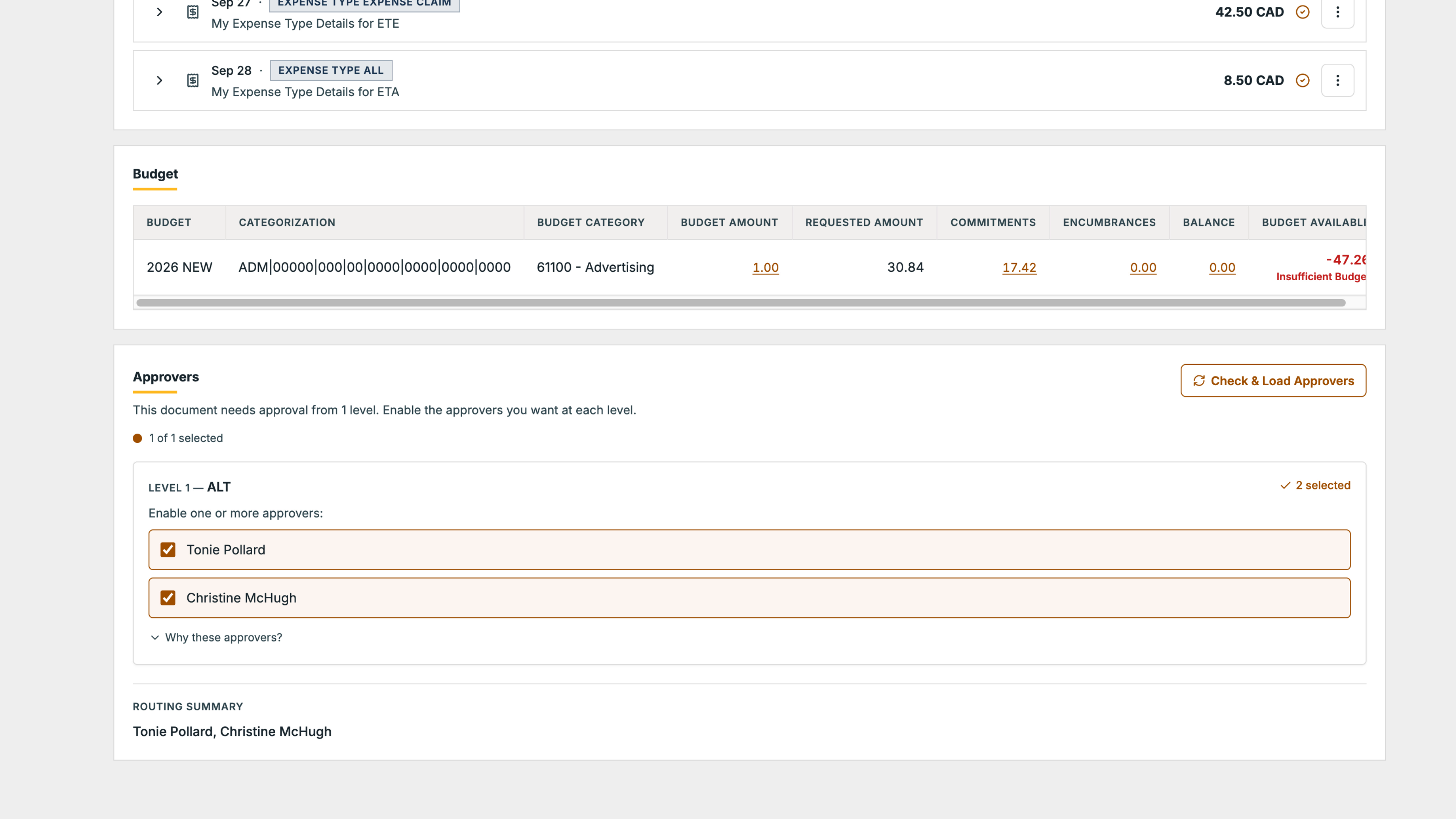
- Simpler approver selection. A routing summary shows exactly where your document will go before you submit, and a clear approver chain shows where it is afterwards.
- Purchase requisitions and payment requests. The same card and table views, budget panel, and approver selection. Fill in the details and vendor, save, then add your lines.
For Finance managers
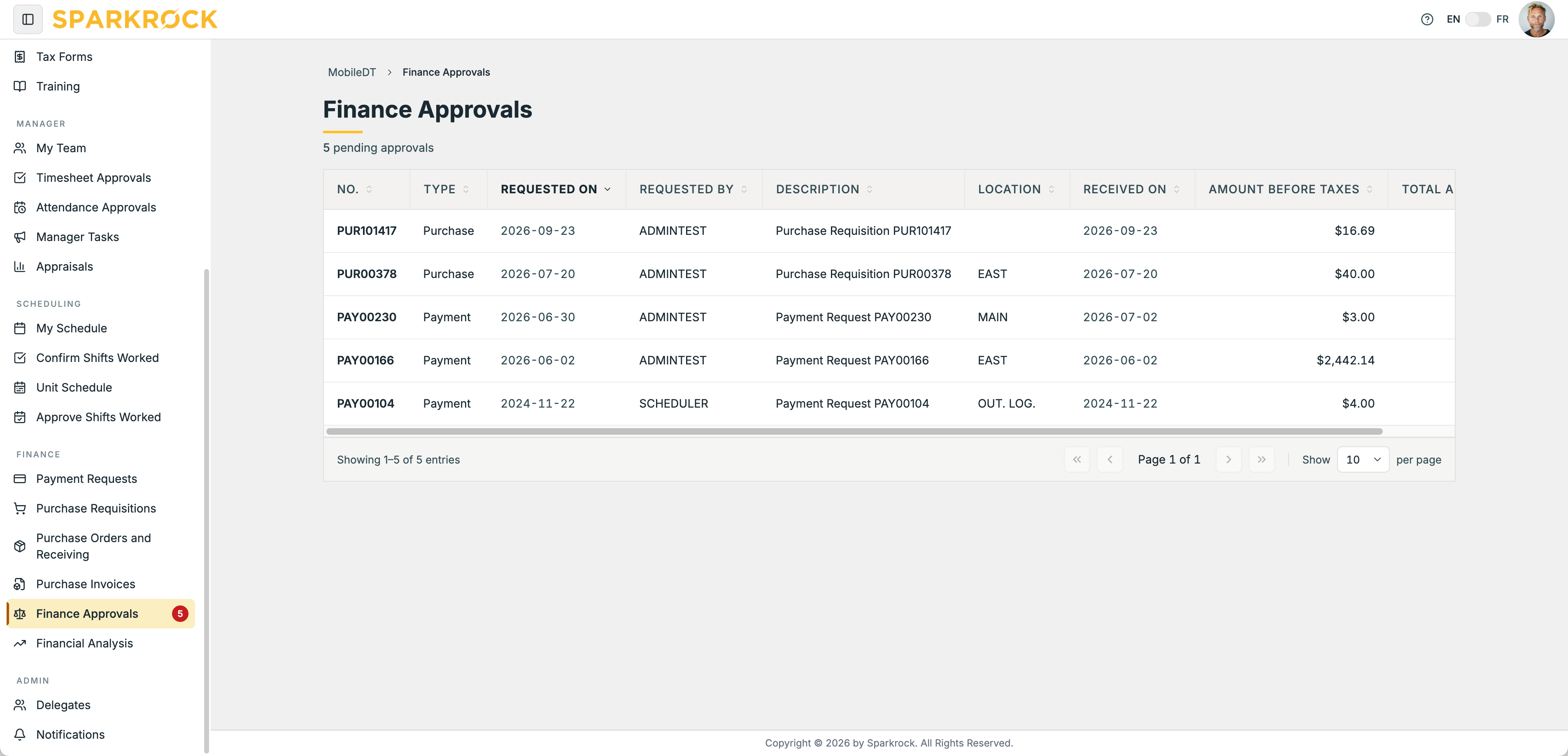
- See what’s waiting. A count shows how many items need your approval.
- Read a document fast. Switch to table view to see every line side by side, and expand any line that needs a closer look.
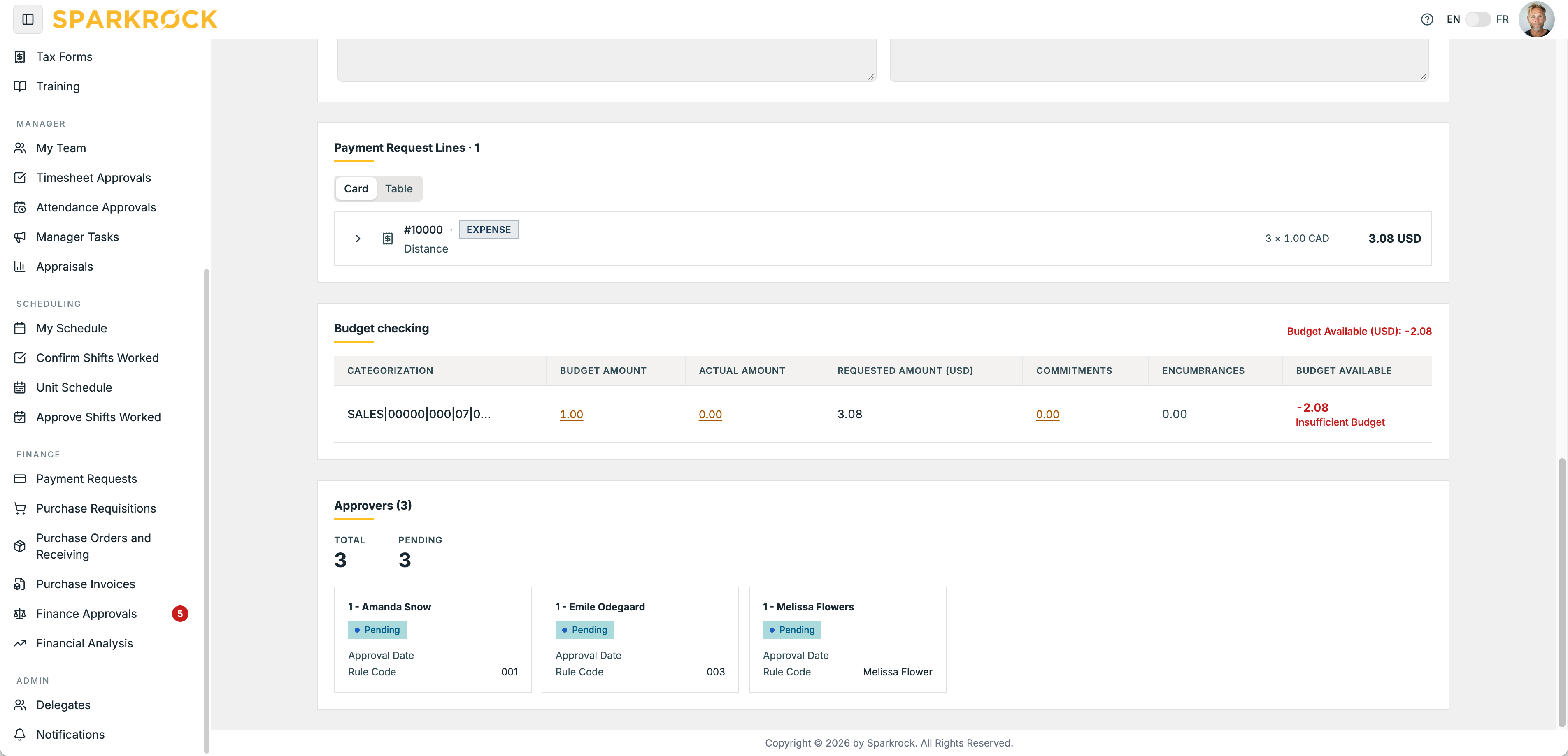
- Budget detail where you decide. If your organization uses budget checking, see the budget amount, commitments, encumbrances, and what’s available, with a clear over-budget flag.
- Clear routing. See which approvers a document will pass through, who has approved, and where it is right now.
For HR employees
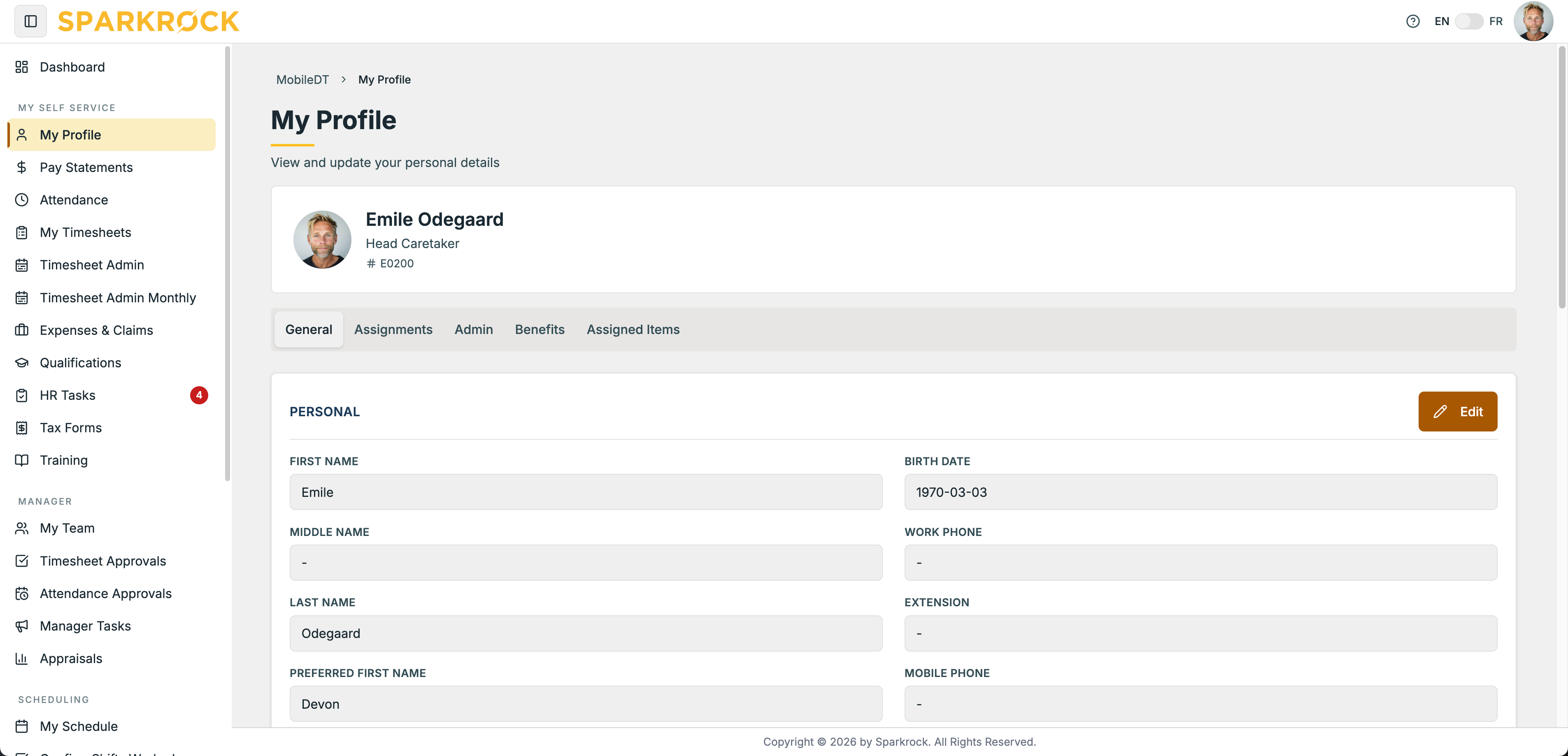
- A tabbed profile. Your details are grouped into tabs, and any change waiting for approval is clearly flagged, with a Pending Changes tab to see exactly what you asked for.
- Preview before you download. Open a pay statement or tax form right in mySparkrock before downloading it.
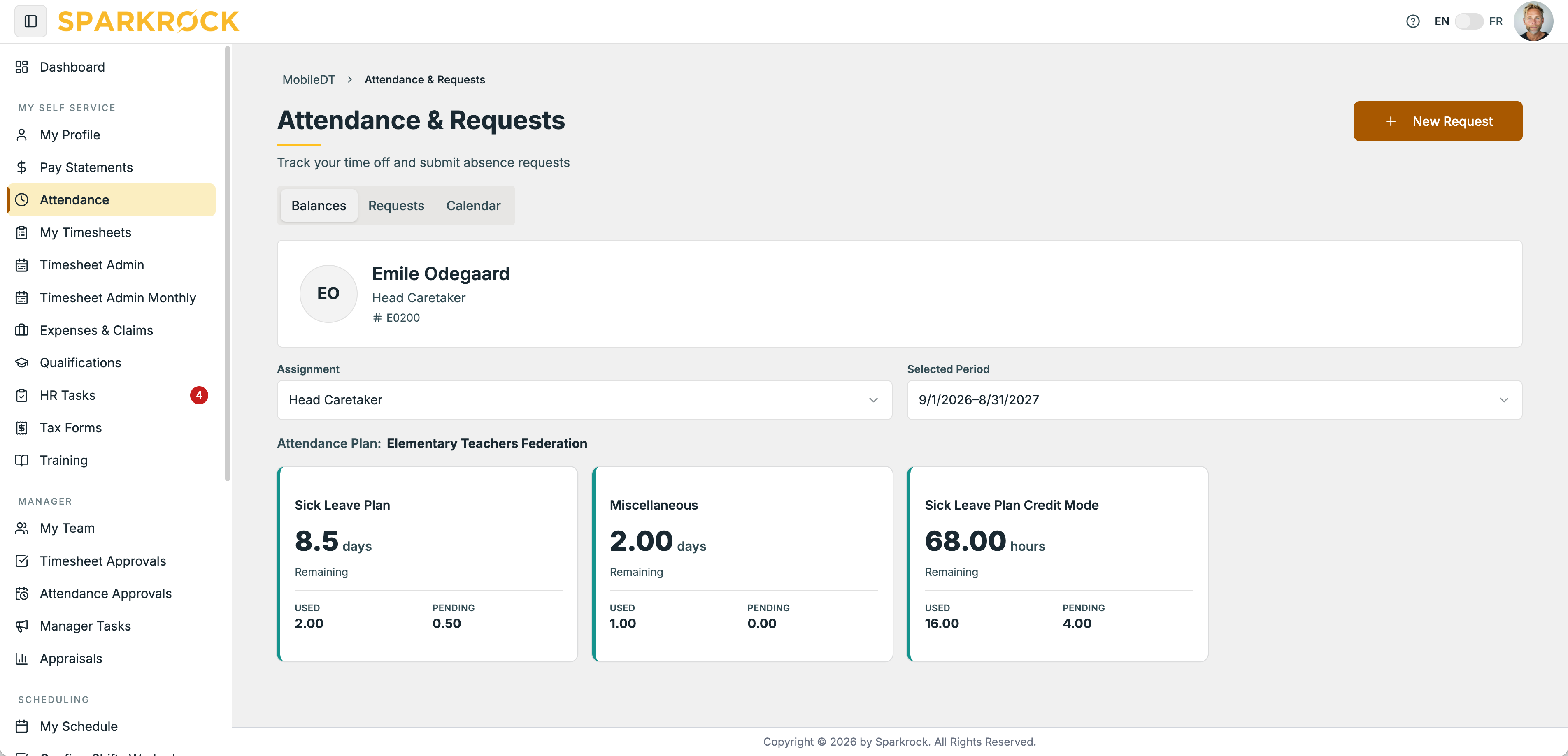
- Time off by category. See your balance, used, and pending time for each category at a glance. Select a category for absence codes and transaction history.
- A new Requests tab. All your time-off requests in one place, with their status.
- A running total on requests. See your total as you fill in a request, so you know it’s right before you send it.
- Clearer timesheets. Weekly, line, and daily totals at a glance, and an icon on any line with a comment.
- A refreshed schedule. If your organization uses scheduling, view your shifts in card, table, or calendar view. Check pending changes, bid on or accept open shifts, and confirm shifts you’ve worked.
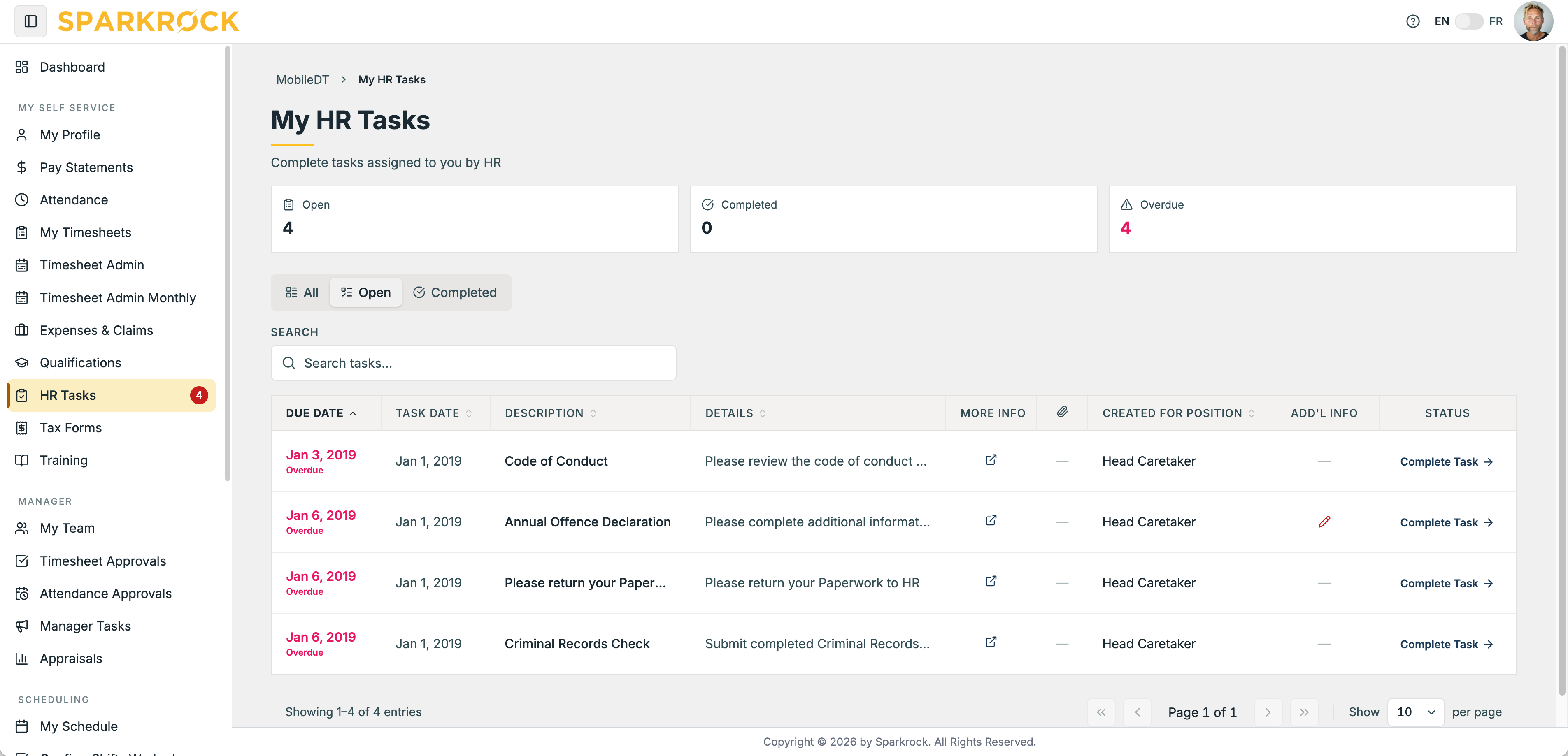
- HR Tasks at a glance. Tiles show what’s open, completed, and overdue. Overdue tasks are flagged in red, and everything fits on one page.
- Qualifications and Training. The same features with a cleaner look. Qualifications now shows clearly how long ago something expired, and you can export your list.
For HR managers
- Summary tiles on your manager pages. See what needs your attention the moment a page loads:
- Timesheet Approvals: timesheets pending and total hours pending
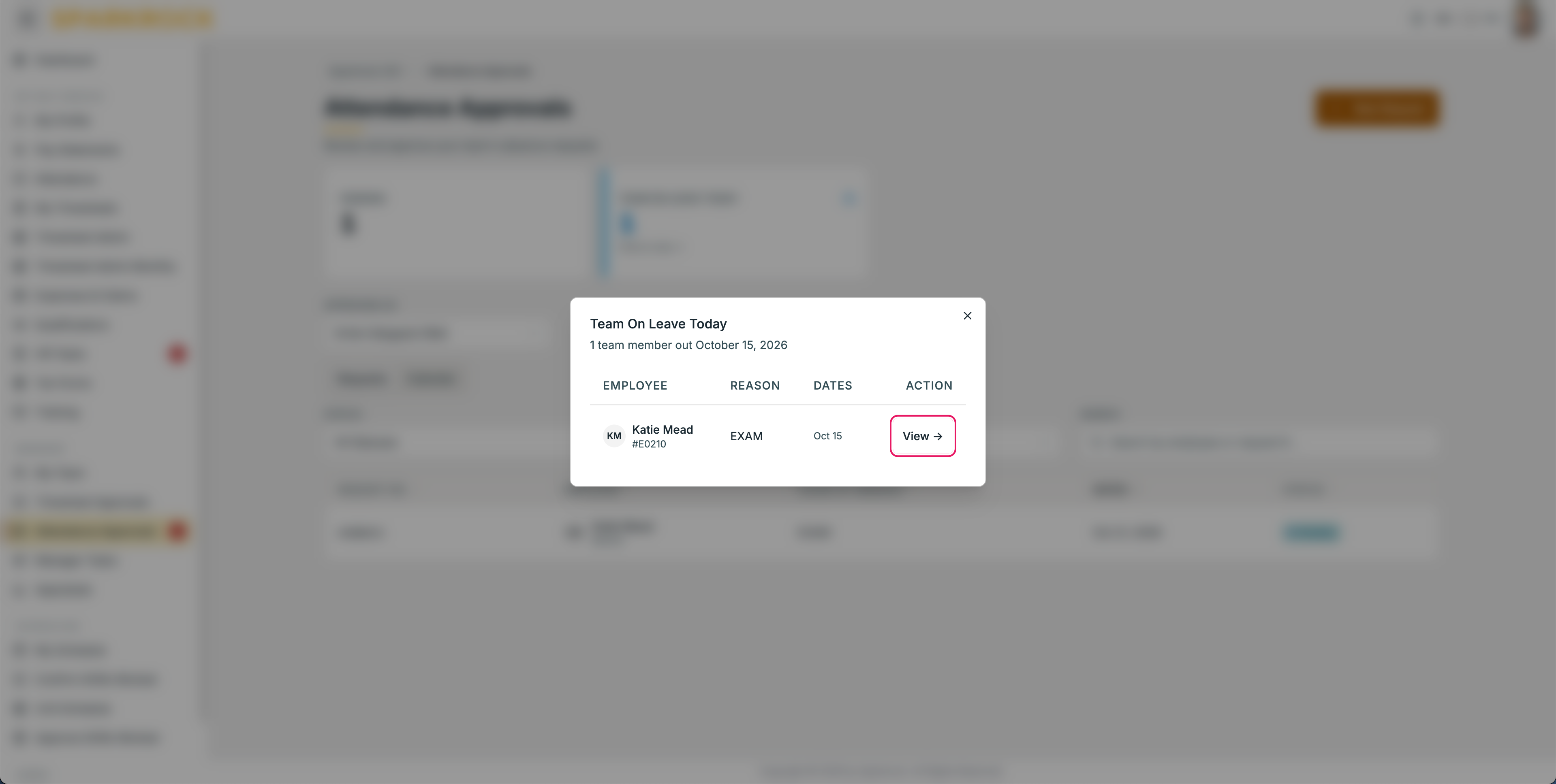
- Attendance Approvals: requests pending and team members on leave today
- Manager Tasks: open, in progress, completed, and overdue
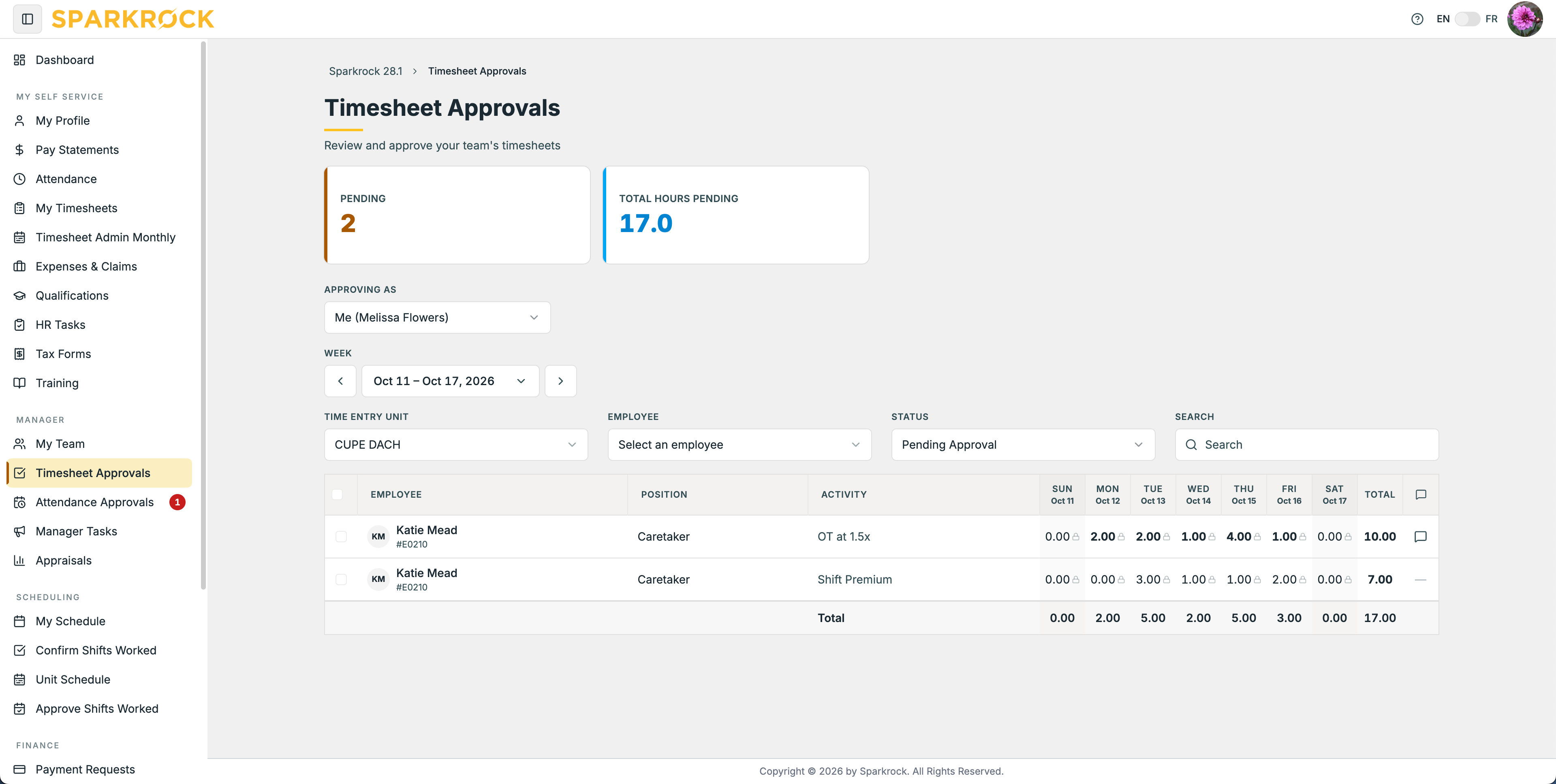
- Easier timesheet review. Daily hours and weekly totals on one row, with an icon on any line with a comment.
- Attendance in a list or calendar. See how a request fits against the rest of your team before approving it.
- Overdue tasks flagged. The number of overdue manager tasks shows in the sidebar.
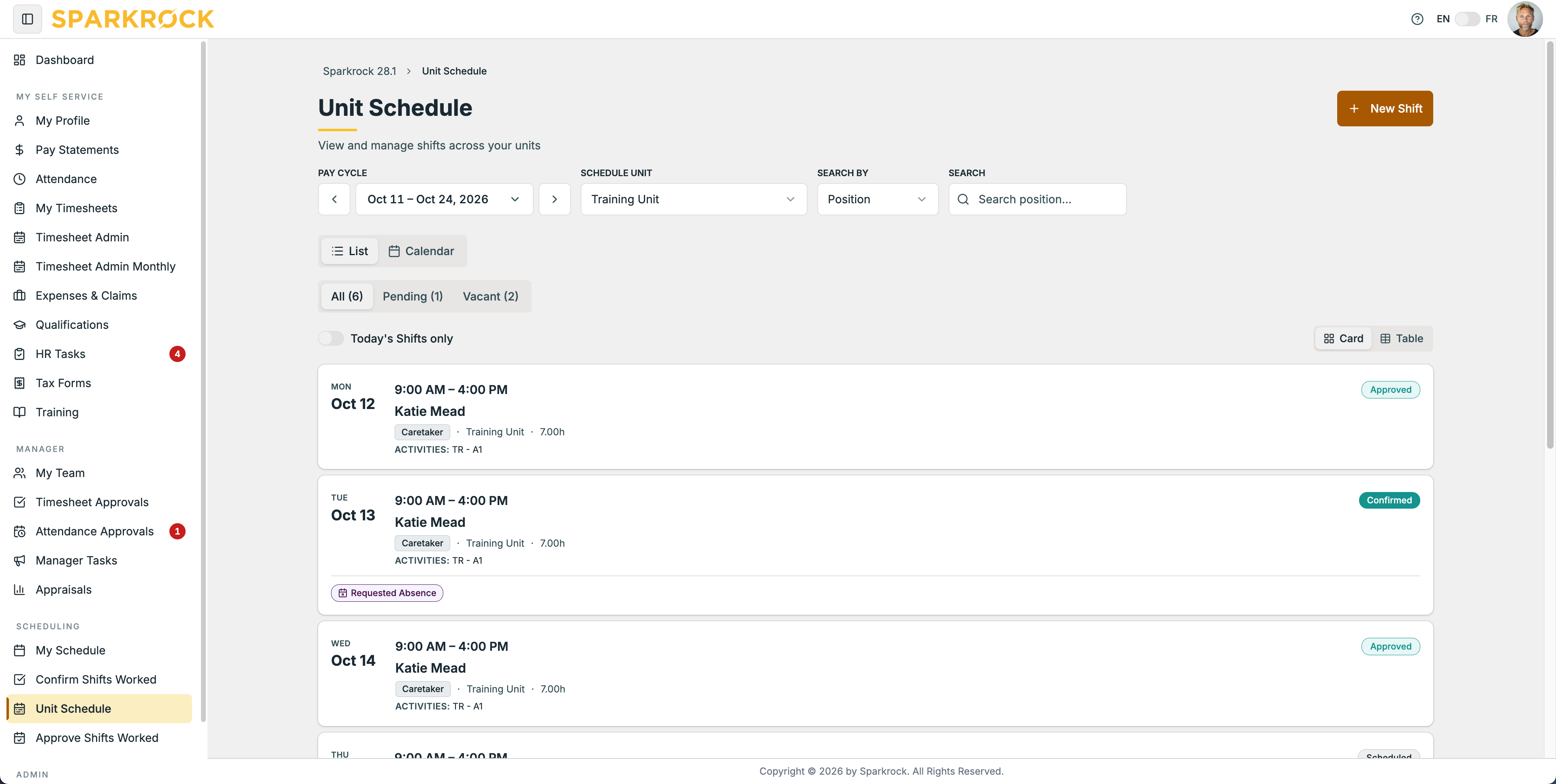
- Unit Schedule. If your organization uses scheduling, handle change requests, trades, and open shifts. Fill, split, or offer vacant shifts, and replace or vacate filled ones. Shifts employees add themselves come to you as requests.
- Approve Shifts Worked. Approve confirmed shifts one at a time or in bulk.
- Delegates. Set up someone to cover your approvals while you’re away, under Administration.
Was this article helpful?
That’s Great!
Thank you for your feedback
Sorry! We couldn't be helpful
Thank you for your feedback
Feedback sent
We appreciate your effort and will try to fix the article