1. Overview
This article describes how to safely uninstall the PS Finance APIs extension from a Business Central environment, upgrade that environment to version 28 (v28), and then deploy the replacement, PS APIs PTE. Following these steps in the correct order prevents dependency conflicts and ensures the new PTE installs cleanly.
NOTE: This procedure requires access to the Microsoft Dynamics 365 Business Central Admin Center and sufficient permissions to manage extensions and environment upgrades.
2. Prerequisites
Before beginning, confirm the following:
- You have Business Central Admin Center access (either as a delegated admin or an internal admin with the correct role).
- You have the PS APIs PTE .app file attached at the bottom of this article.
- All users have been notified of the planned maintenance window — the environment will be unavailable during the upgrade.
IMPORTANT: Do not skip the uninstall step. Installing the PS APIs PTE on top of an existing PS Finance APIs installation will cause an upgrade failure and the app deployment will fail.
3. Step 1 — Uninstall PS Finance APIs
Follow these steps to remove the PS Finance APIs extension from the Business Central environment.
3.1 Open Extension Management
- Sign in to Business Central as an administrator.
- Use the search bar and type Extension Management, then open the page.
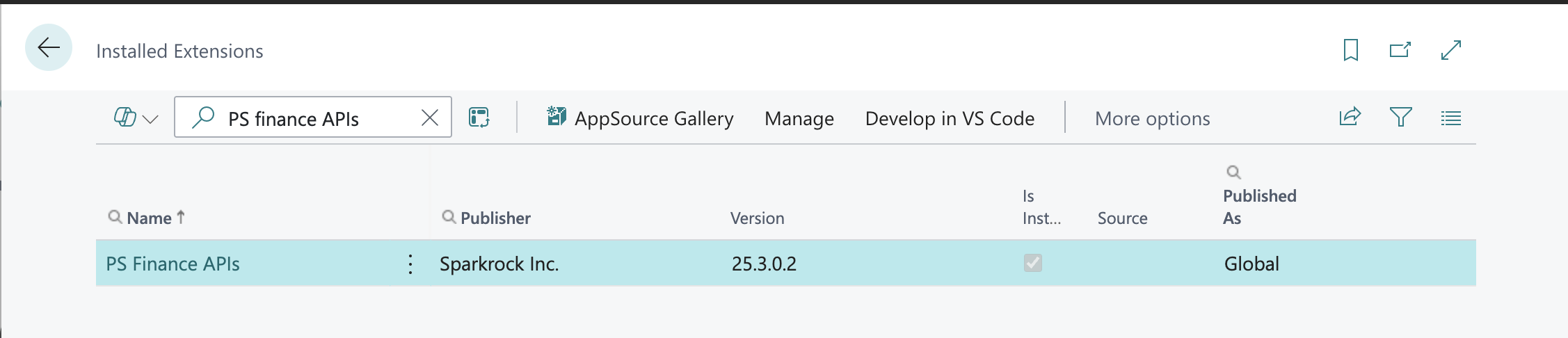
3.2 Locate PS Finance APIs
- In the Extension Management list, find PS Finance APIs.
- Confirm the publisher is Sparkrock to ensure you are uninstalling the correct extension.
3.3 Uninstall the Extension
- Select the row for PS Finance APIs, then choose Manage > Uninstall from the action bar.
- In the Uninstall Extension dialog, leave the Delete extension data option disabled
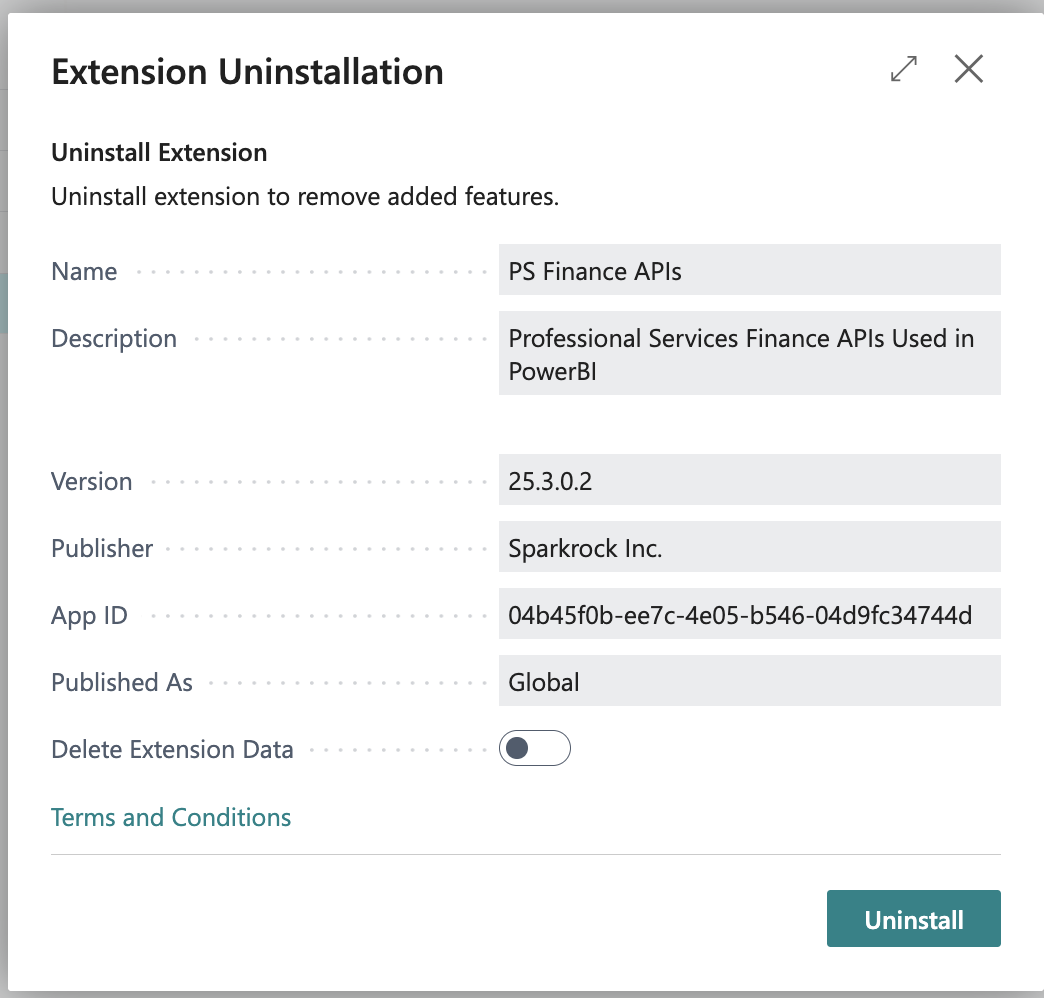
- Click Uninstall to confirm. The extension will be removed from the environment.
- Verify the extension no longer appears in the Extension Management list, or that its status shows as Uninstalled.
4. Step 2 — Upgrade the Environment to v28
With PS Finance APIs removed, you can now upgrade the Business Central environment to version 28.
4.1 Access the Business Central Admin Center
- Navigate to the Microsoft Dynamics 365 Business Central Admin Center at https://businesscentral.dynamics.com/<tenant>/admin.
- In the left navigation, select Environments and click on the environment you want to upgrade.
4.2 Schedule or Initiate the Upgrade
- On the environment details page, look for the Version section.
- If v28 is available and the environment is not yet on it, click Schedule Update or Update Now, depending on your Admin Center version.
- Select Version 28 from the available target versions.
- Choose a maintenance window or select Update now if you are ready to proceed immediately.
- Confirm by clicking Schedule or Update. The environment will enter an updating state.
IMPORTANT: The environment will be unavailable to users during the upgrade. Ensure all users are logged out before proceeding and that the maintenance window has been communicated.
4.3 Monitor the Upgrade
- In the Admin Center, monitor the Operations log for the environment to track progress.
- Wait until the environment status returns to Active and the version shows as v28 before continuing to Step 3.
- If the upgrade fails, review the Operations log for error details.
TIP: Upgrade duration varies by database size and tenant load. Allow at least 30–60 minutes for the process to complete.
IMPORTANT: Other PTE apps may be incompatible and need to be uninstalled if the update fails. Please create a Support ticket with the error message and we will assist you in the required steps.
5. Step 3 — Deploy the PS APIs PTE
With the environment running v28 and PS Finance APIs removed, you can now deploy the PS APIs Per-Tenant Extension (PTE).
5.1 Open Extension Management
- Sign in to Business Central as an administrator on the upgraded v28 environment.
- Use the search bar and type Extension Management, then open the page.
5.2 Upload and Deploy the PS APIs PTE
- On the Extension Management page, select Manage > Upload Extension from the action bar.
- In the Upload and Deploy Extension dialog, click Select .app file and browse to the PS APIs .app file that you downloaded from the bottom of this article.
- Set Deploy to to Current version and Schema Sync Mode to Add
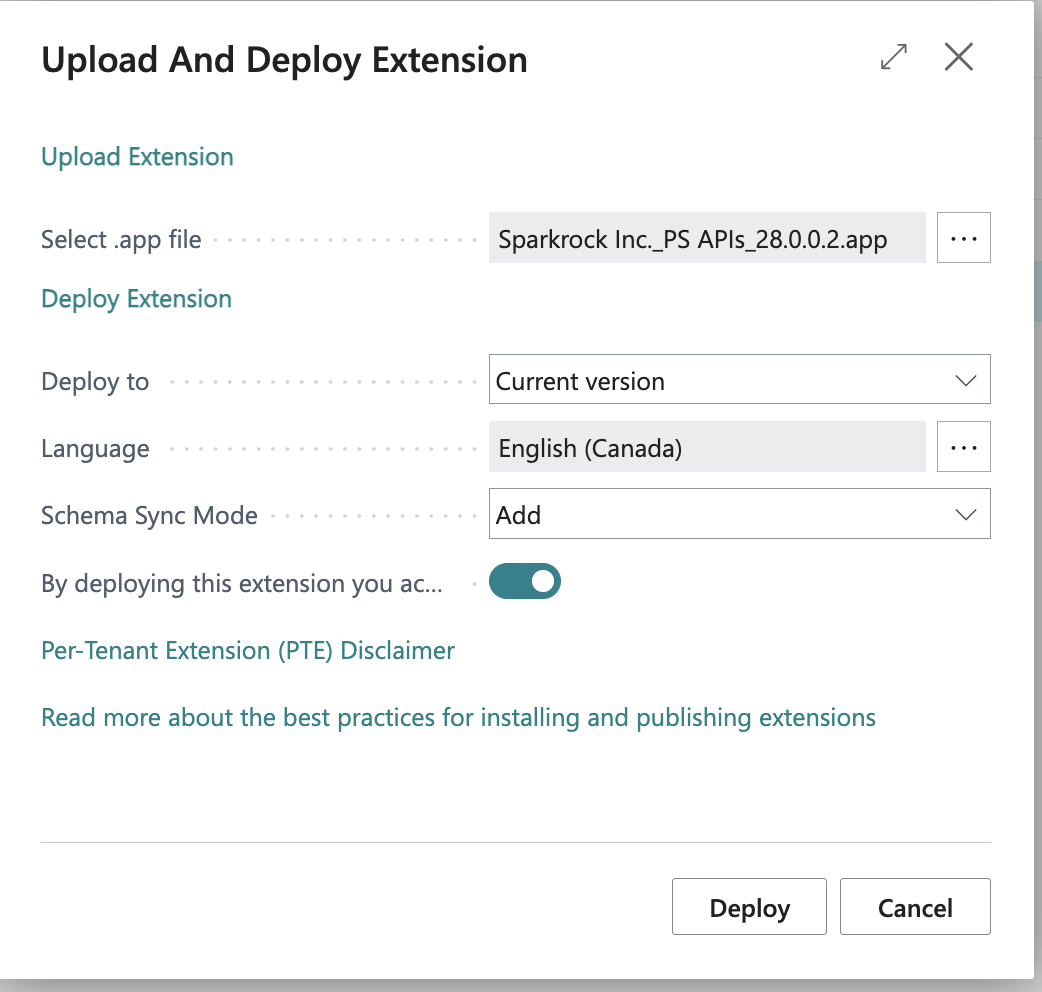
- Click Deploy. Business Central will upload and install the PTE. The page will refresh when the deployment is complete.
5.3 Verify the Deployment
- On the Extension Management page, click Manage > Installation Status and confirm that PS APIs installation is Completed after a few minutes.
- Verify that all integrations that use APIs are functioning correctly. This includes Power BI reports.
6. Summary
Key steps covered in this article:
- Uninstall PS Finance APIs via Extension Management in Business Central, choosing to keep data.
- Upgrade the environment to v28 via the Business Central Admin Center, monitoring the Operations log until the upgrade completes. If the update fails, please create a Support ticket with the error message details.
- Upload the PS APIs PTE to the upgraded v28 environment using Extension Management.
- Verify the PTE installation in Extension Management and run post-deployment verifications.
Was this article helpful?
That’s Great!
Thank you for your feedback
Sorry! We couldn't be helpful
Thank you for your feedback
Feedback sent
We appreciate your effort and will try to fix the article