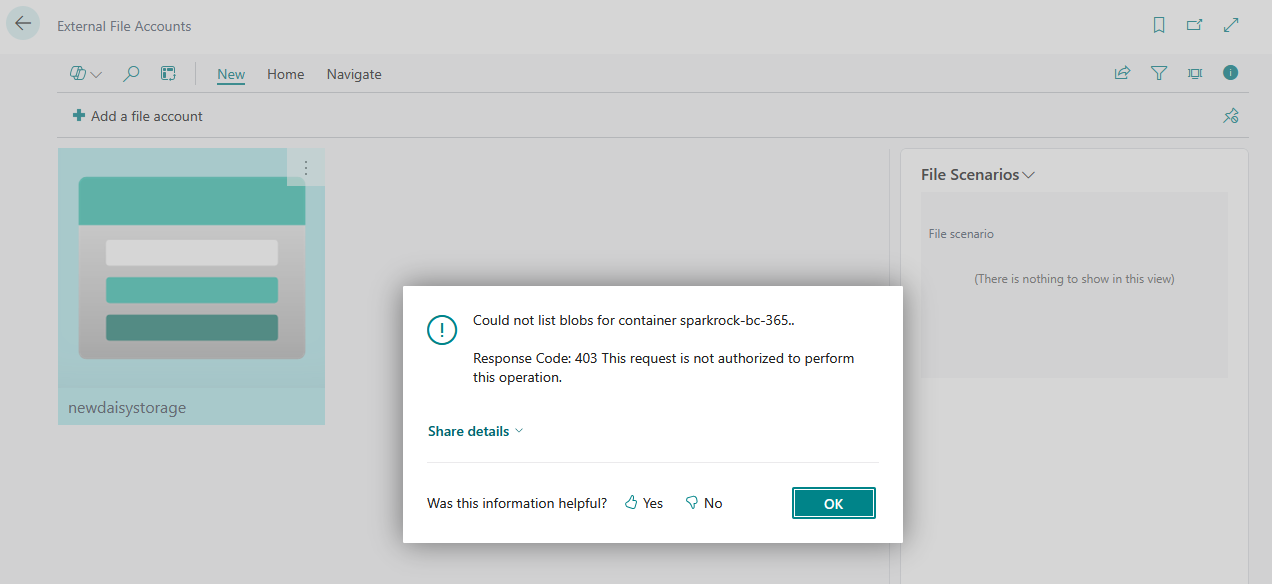
Azure blob storage setup error code 403 in SR365

Modified on Tue, 15 Sep at 12:47 PM

Summary


Users may be unable to fully configure Azure blob storage / External files account in Sparkrock 365. When attempting to open the container in the external files account or when you click transfer to start the file transfer process, the system returns a 403 – Forbidden error indicating that the request is not authorized to perform the operation.


This issue occurs when the Azure Storage Account used by Sparkrock for document attachments has Public network access disabled. When public network access is disabled, requests to the Storage Account's public endpoint are rejected unless the request is coming through an appropriately configured private endpoint or another permitted network path.

Error Message

When attempting to transfer files from SR365 to Azure blob storage, users may receive an error similar to:

Could not upload Production%2F{GUID} to sparkrock-bc-365.

Response Code: 403 This request is not authorized to perform this operation.

Cause

The Azure Storage Account configured for Sparkrock document attachments has Public network access disabled.

When public network access is disabled, Azure blocks requests made through the Storage Account's public endpoint and can return a 403 – AuthorizationFailure response. Microsoft identifies disabled public network access as one of the causes of this specific 403 error.


Solution

Enable Public network access for the Azure Storage Account used by Sparkrock for document attachments.

  1. Sign in to the Azure Portal.
  2. Navigate to the Storage Account used for Sparkrock document attachments.
  3. Select Networking under Security + networking.
  4. Under Public network access, select Manage.
  5. Set Public network access to Enabled.
  6. If applicable, select Enabled from all networks.
  7. Select Save.


Microsoft documents that enabling public network access allows traffic to the Storage Account's public endpoint, while disabling it restricts access to private endpoints.


Verification

After enabling public network access:

  1. Return to SR365
  2. Click the transfer files button again in the Azure blob storage page on SR365
  3. Confirm that the attachment upload starts successfully by checking the job queue SRP Download Files from ABS job or your blob container to confirm files are dropping.


If the issue persists, verify whether the Storage Account is configured to allow access only from specific IP addresses, virtual networks, or subnets, as these restrictions can also result in a 403 response.


Additional Note

Related Microsoft documentation: Troubleshoot Azure Blob Storage 403 errors 

Set the default public network access rule for an Azure Storage account

Set up Sparkrock Finance to use Azure Blob Storage to store company data | Sparkrock help 


Was this article helpful?

That’s Great!

Thank you for your feedback

Sorry! We couldn't be helpful

Thank you for your feedback

Let us know how can we improve this article!

Select at least one of the reasons
CAPTCHA verification is required.

Feedback sent

We appreciate your effort and will try to fix the article